An audio recording is only useful when you can play it, share it, or edit it without unnecessary complications. OPUS is an efficient audio format commonly used for voice messages and internet communication, but some media players, editing applications, and older devices may not support it properly. Converting an opus file to mp3 can make recordings easier to use across different platforms without requiring specialized playback software.
Whether you are organizing voice notes, preparing audio for a presentation, or collecting recordings for a personal archive, understanding the differences between OPUS and MP3 helps you choose the right format for the job.
Table of Contents
- What Makes OPUS Different from MP3?
- Why Convert OPUS Recordings to MP3?
- OPUS vs. MP3: A Quick Comparison
- How to Convert an OPUS File to MP3
- Getting the Best Results from Audio Conversion
- Common Conversion Problems and Their Solutions
- Frequently Asked Questions
1. What Makes OPUS Different from MP3?
OPUS is an audio codec designed to handle speech and music efficiently, particularly in applications that transmit audio over the internet. It is widely suited to voice calls, online meetings, gaming communication, and messaging applications where clear sound and efficient data usage matter.
MP3, by comparison, has been supported by a broad range of devices and software for decades. Its familiarity makes it a convenient choice for everyday listening, sharing recordings, and importing audio into applications that may not recognize newer formats.
The main difference: OPUS emphasizes efficient audio compression, while MP3 offers broad compatibility with established playback systems.
[Image suggestion: A visual comparison of an OPUS audio file and an MP3 audio file displayed on a laptop and smartphone.]
2. Why Convert OPUS Recordings to MP3?
The need for conversion usually appears when a recording must move from one application to another. A file that plays perfectly in its original messaging app may not open in a basic audio editor or a media player installed on another computer.
Here are some practical reasons to convert an OPUS recording.
Easier playback across devices
MP3 is recognized by many smartphones, computers, car stereos, portable music players, and media applications. Converting an unsupported recording can make it easier to listen to without searching for an additional codec or compatible player.
Convenient audio editing
Some editing programs accept MP3 files more readily than OPUS files. Converting a recording can simplify the process of importing dialogue, trimming unnecessary pauses, or preparing audio for a presentation.
Better organization and sharing
People often accumulate voice notes, interviews, meeting recordings, and short audio clips across several applications. Keeping commonly used recordings in a familiar format can simplify file management and sharing.
Preparing audio for different projects
MP3 can be a practical choice when adding recorded speech to presentations, educational materials, personal projects, or other content that requires a widely supported audio file.
Important to remember: Converting a file does not automatically improve its sound quality. Both OPUS and MP3 can use lossy compression, so the result depends partly on the original recording and the conversion settings.
3. OPUS vs. MP3: A Quick Comparison
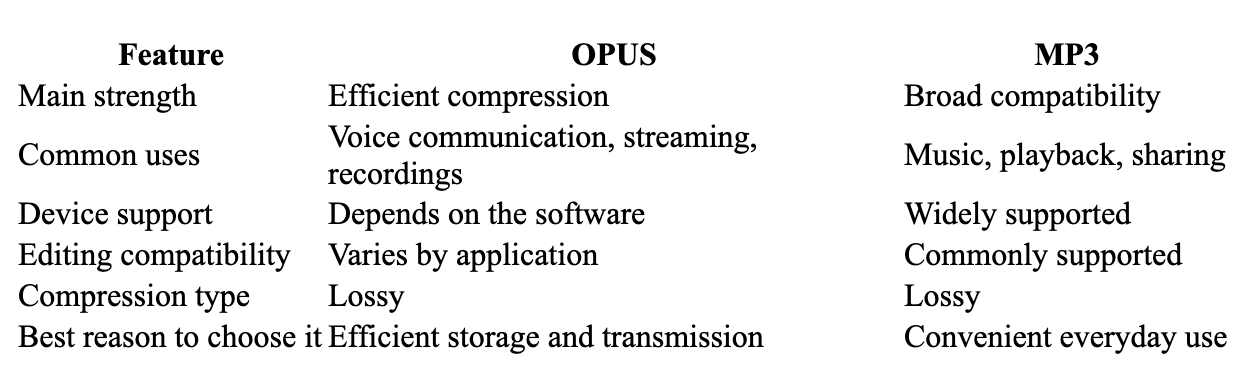
Neither format is universally better. OPUS can deliver good perceived quality at relatively low bitrates, while MP3 remains a useful option when compatibility is the priority.
The right choice depends on where the audio will be played and whether file size, sound quality, or ease of sharing matters most.
4. How to Convert an OPUS File to MP3
You do not necessarily need to install desktop audio software to change the format. A browser‑based converter can provide a straightforward alternative.
A typical conversion process involves the following steps:
Step 1: Locate your recording
Find the OPUS file on your computer or phone. If it comes from a messaging application, check where the app stores downloaded audio files.
Step 2: Upload the file
Open an online audio converter and select your OPUS recording. Depending on the service, you may also be able to import a file from a supported cloud storage account.
Step 3: Select MP3 as the output format
Choose MP3 from the available output formats. If audio settings are offered, review them before starting the conversion.
Step 4: Convert the recording
Start the conversion and allow the file to upload and process. The time required depends on the recording's size and your internet connection.
Step 5: Download and test the result
Save the converted MP3 file and play it in your intended application. Check that the recording sounds complete and that the beginning and ending have not been cut off.
[Image suggestion: A simple three‑stage illustration showing file upload, MP3 format selection, and audio download.]
5. Getting the Best Results from Audio Conversion
Changing the file extension is not the same as converting the underlying audio data. Renaming recording.opus to recording.mp3, for example, does not transform the recording into a valid MP3 file. Use an actual audio conversion process instead.
A few additional practices can help preserve the quality and usefulness of your recordings.
Choose sensible bitrate settings
Bitrate affects the amount of data used to represent audio. A higher MP3 bitrate generally preserves more audio detail, although the audible improvement depends on the source material and listening conditions.
For ordinary speech, a moderate setting may be sufficient. Music and recordings with complex background sounds can benefit from more careful listening tests.
Keep the original recording
Save the original OPUS file until you have checked the converted version. This gives you a fallback if the MP3 sounds different than expected or if you later need another output format.
Check sample rate and channels
Sample rate and channel settings affect how audio is represented. For a simple voice message, stereo output may not provide any practical advantage if the source is mono. Avoid changing settings unnecessarily when the defaults already meet your needs.
Consider file size
The resulting MP3 may be larger or smaller than the original OPUS file. File size depends on bitrate, duration, and encoding settings; the output format alone does not determine the result.
6. Common Conversion Problems and Their Solutions
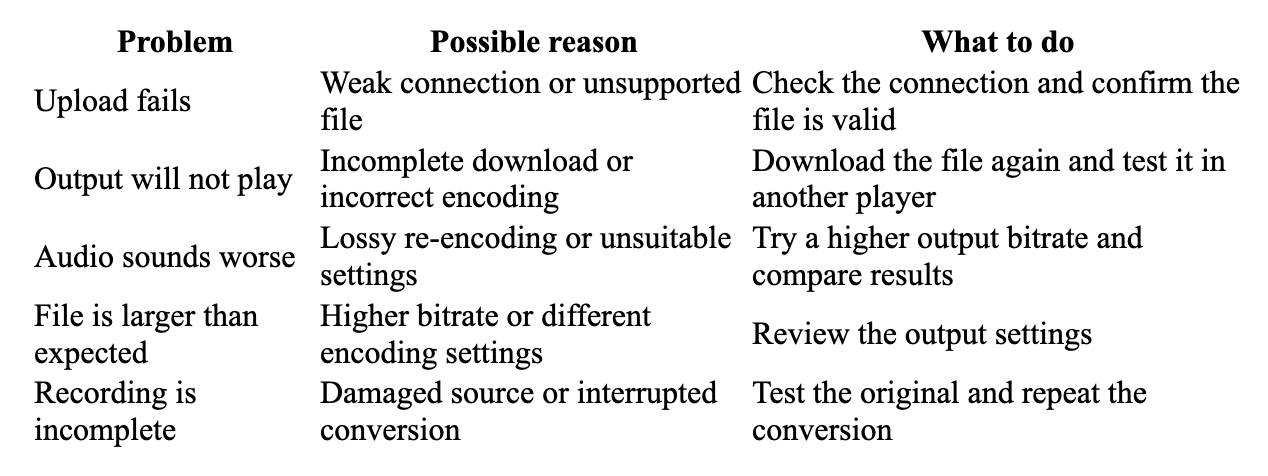
If a recording contains confidential business discussions, personal information, or private voice messages, consider the sensitivity of the content before uploading it to an online service. Review the service's privacy policy and file‑retention practices, or choose an appropriate offline converter.
7. Frequently Asked Questions
Does converting OPUS to MP3 reduce audio quality?
It can. Both formats can use lossy compression, and converting an already compressed recording may introduce additional quality loss. A suitable bitrate and a good original recording help minimize noticeable differences.
Can I convert a voice message into MP3?
Yes, provided you can access the original OPUS audio file and the converter supports it. After conversion, test the MP3 to ensure the entire message is present.
Will an MP3 file always be smaller than an OPUS file?
No. The final size depends on the audio duration, bitrate, and encoding settings. MP3 may produce a larger file when a higher bitrate is selected.
Do I need to install software?
Not necessarily. Online converters can perform the process through a browser, while desktop applications may be preferable for offline work or more advanced editing.
Is changing the filename extension enough?
No. Changing the extension only changes the filename; it does not convert the audio codec. A proper conversion is necessary for compatibility.
Make Your Recordings Easier to Use
OPUS is a capable format for efficient speech and music transmission, but compatibility can become an obstacle when recordings need to move between different devices and applications. MP3 remains a practical alternative for everyday playback, sharing, and editing.
By choosing suitable conversion settings, retaining the original recording, and checking the finished file, you can make your audio library easier to manage without sacrificing more quality than necessary. The best format is ultimately the one that fits your intended use.