A client changed an integration requirement on Tuesday. By Thursday, we were implementing it in1Cursor, but the reasoning behind that change was buried in a meeting transcript. Instead of finding the call and copying the relevant passage into my assistant, I gave it direct access through MCP. Why? Because MCP cuts down on manual work. I can ask Claude to turn a requirements discussion into a technical specification or have a coding agent use the same conversation to investigate an issue in the codebase. Either way, I don't have to reconstruct the discussion from scratch.
So let’s talk about AI meeting note takers with MCP integration a bit. MCP (Model Context Protocol) is an open standard that lets AI apps connect to other software. In my case, it means I can ask Claude about a past meeting without manually feeding it the transcript. By late 2026, almost every note taker I looked at had an official MCP server.
But I was more interested in what these integrations could actually do. Could my coding agent retrieve the exact acceptance criteria a client agreed to? Could Claude distinguish a proposed change from an approved one or update follow‑up tasks after a review? What control would I have over access to confidential client conversations?
With these questions in mind, I compared five AI meeting note takers with MCP integration, looking at what each server can read and change, which apps it supports, and how much it costs.
How I picked these five
I ranked the five based on two things: whether I could use the connector to do more than retrieve meeting information, and how many AI apps it supports.
What I check before connecting a note taker's MCP server
Here’s what I look for before connecting a note taker to my AI tools, roughly in order of importance:
- Can the AI only read, or also act? After a sprint review, I want to find completed commitments and approve task updates without opening each meeting. That’s why I check the actual tool list rather than the marketing page.
- Do I get transcripts or just summaries? A summary is fine until I need the exact acceptance criteria, API constraints or delivery commitments a client agreed to. Some free plans stop at summaries.
- How far back can it see? If I need to revisit a decision from last quarter, a 30‑day history limit won’t help me.
- Which AI apps are documented? Directory listings in Claude or ChatGPT simplify setup. I also check whether the vendor documents setup for Cursor, Claude Code, VS Code, Gemini or Muse.
- What can my admin control? If I’m connecting an entire team, I look for workspace‑level controls or a read‑only mode.
- Where does the data go? Whatever the AI reads becomes part of that chat, under the AI provider's terms. I’d check my company’s policy before connecting any confidential client calls.
AI note takers with MCP integration compared
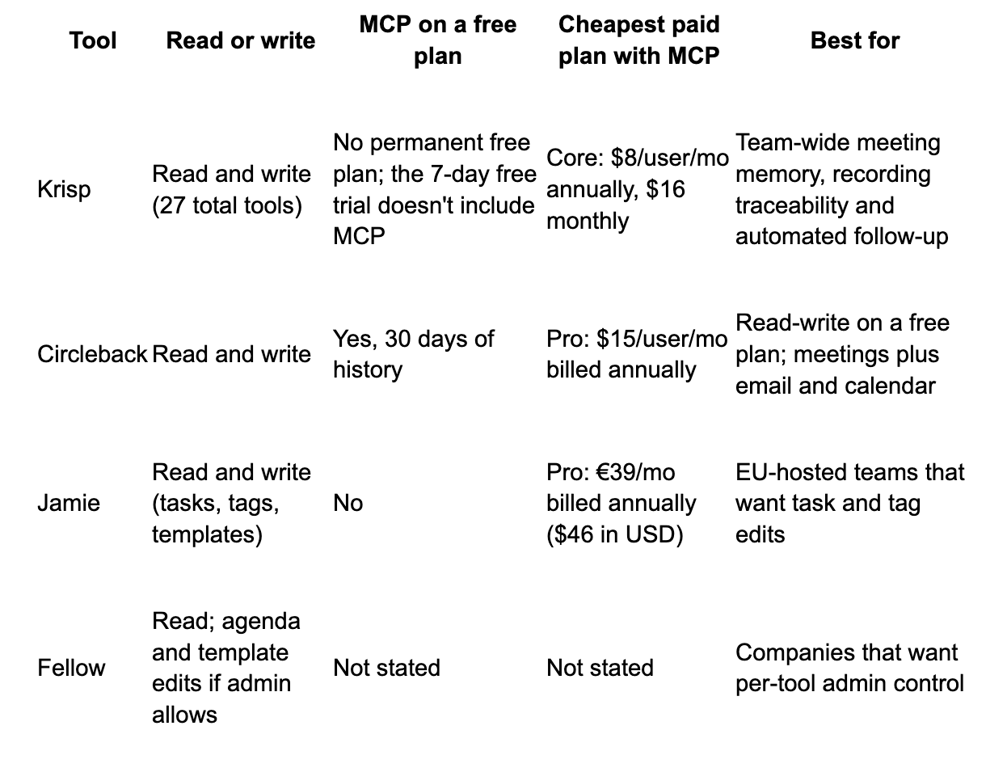

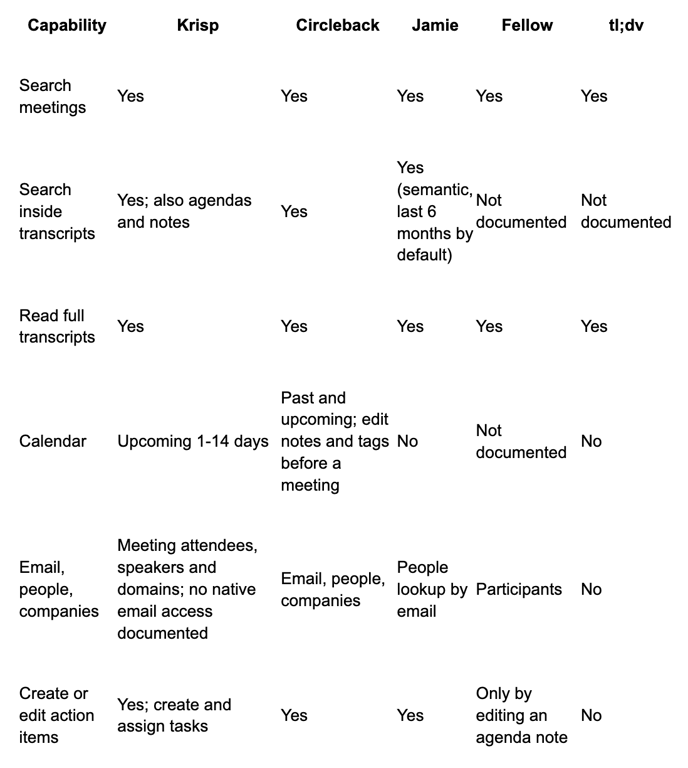
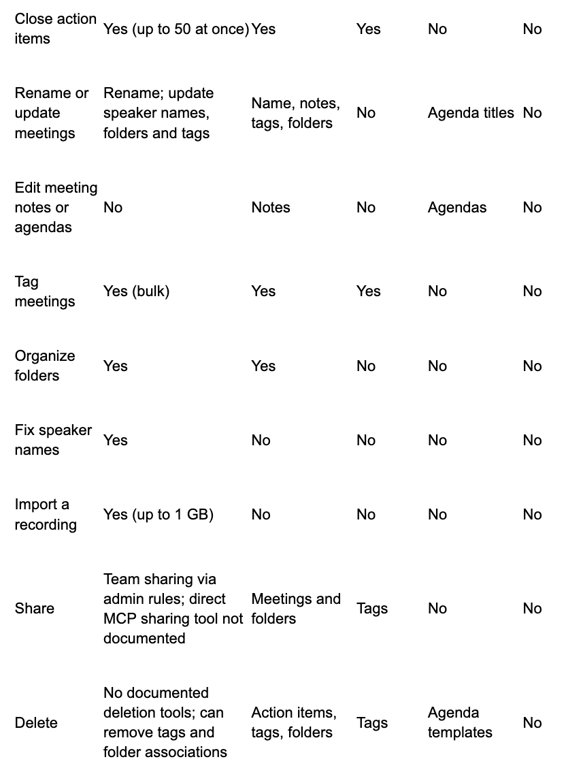
What your AI can do with each server
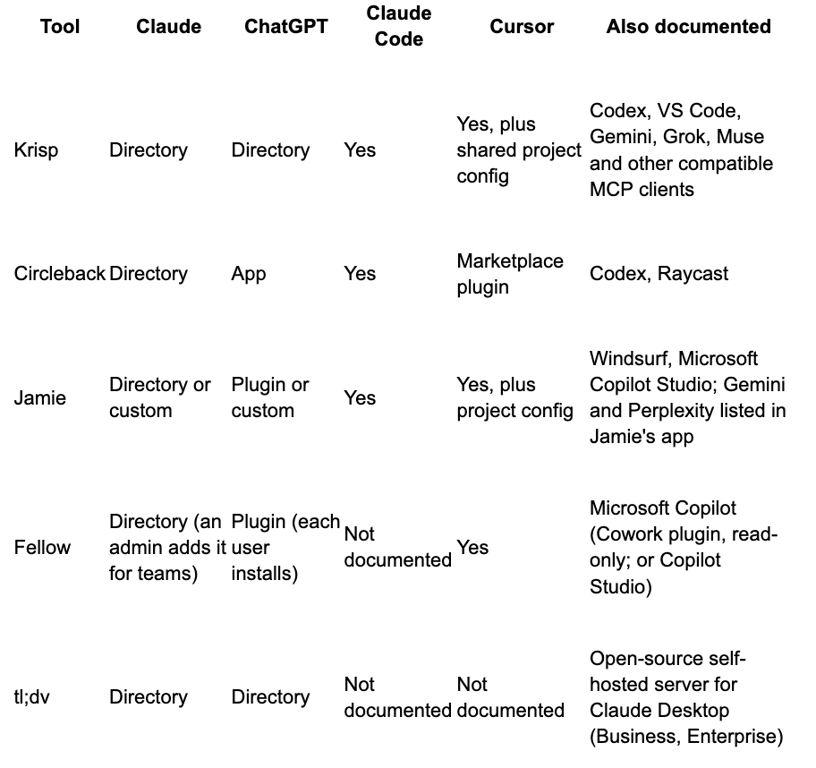
Where each one works
The 5 best AI meeting note takers with MCP in 2027
1. Krisp: best for managing meeting records and action items
What stands out to me about Krisp AI Meeting Note Taker is how much of the follow‑up I could handle without leaving Claude. During a review, I could pull up open action items from the week’s calls, move two deadlines, close three completed tasks and correct "Speaker 2" in the transcript. Krisp has a tool for each of those steps.
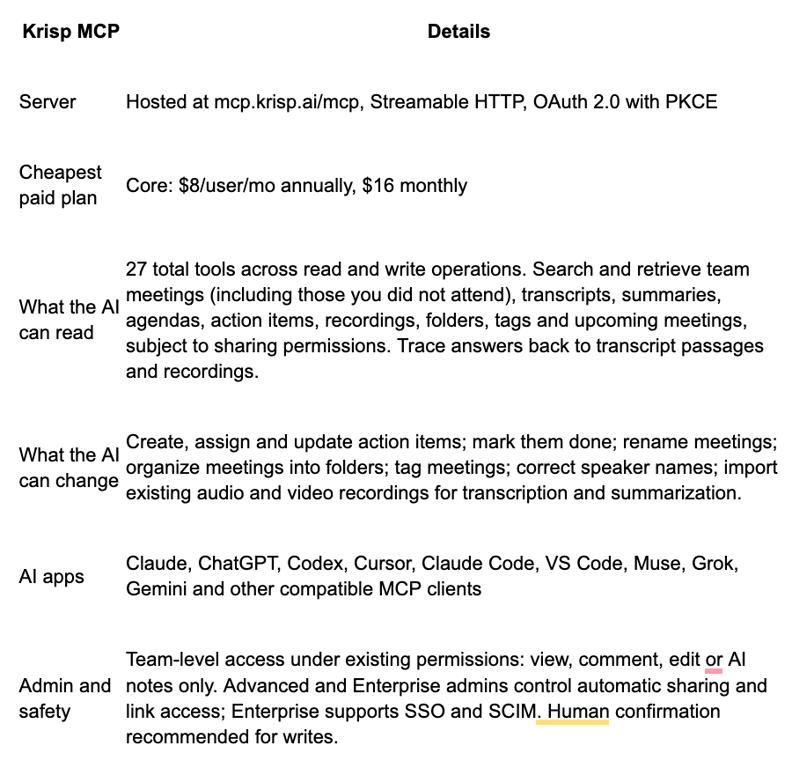
Team‑level access under existing permissions: view, comment, edit or AI notes only. Advanced and Enterprise admins control automatic sharing and link access; Enterprise supports SSO and SCIM. Human confirmation recommended for writes.
I prepared a handover after a client implementation review; I started with the prompt: "Find the meetings about the API migration from the last 2 weeks. List the changes, quote the relevant transcript passages, and identify unresolved action items with their owners." I asked the assistant to update the tasks and move the meetings into the project folder afterwards.
Guess what? I had everything ready in a few minutes!
What stands out to me
- Corrected speaker names in transcripts and updated the corresponding summaries.
- Created, assigned and rescheduled action items
- Calendar access to prepare for upcoming meetings
- Past recordings imported into the searchable meeting library.
- Bot‑free capture by default, without an extra participant joining the call - loved this one. Clients hate bot participants.
Who I’d recommend it to: I’d recommend Krisp MCP to tech teams that want shared meeting context across AI assistants, links back to original calls and automated follow‑up. Admin sharing rules govern access to meetings, including those users did not attend.
2. Circleback: best for read‑write access on a free plan
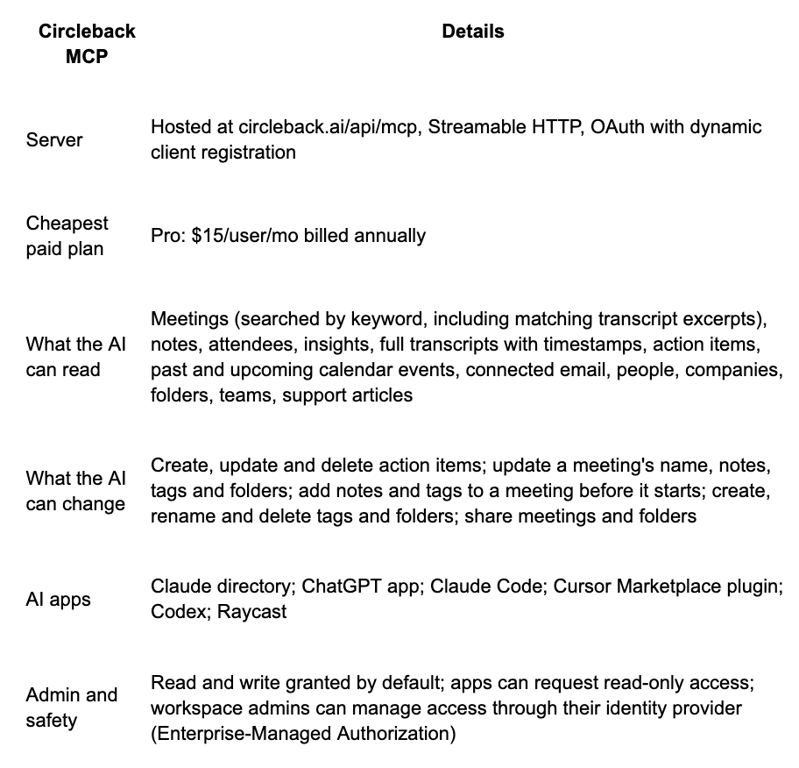
I wanted to start without paying, so Circleback was my first choice for broad MCP access. I searched meetings, calendar events, connected email, people and companies through the same connection.
At the time of my testing, I was taking over an existing client implementation, so I got questions like "What did we promise this client, and what changed in the subsequent email thread?". This drew on all the sources through one connection.
Circleback MCP
What stands out to me
- The only server in this comparison with write tools on a free plan.
- I researched client accounts across email, calendar, people and company records: worked pretty well.
- Every plan included an API and CLI.
Who I’d recommend it to: I’d choose it if I wanted to search meetings, email and calendar data and manage follow‑up without paying upfront.
3. Jamie: best for EU‑hosted teams that want task and tag edits
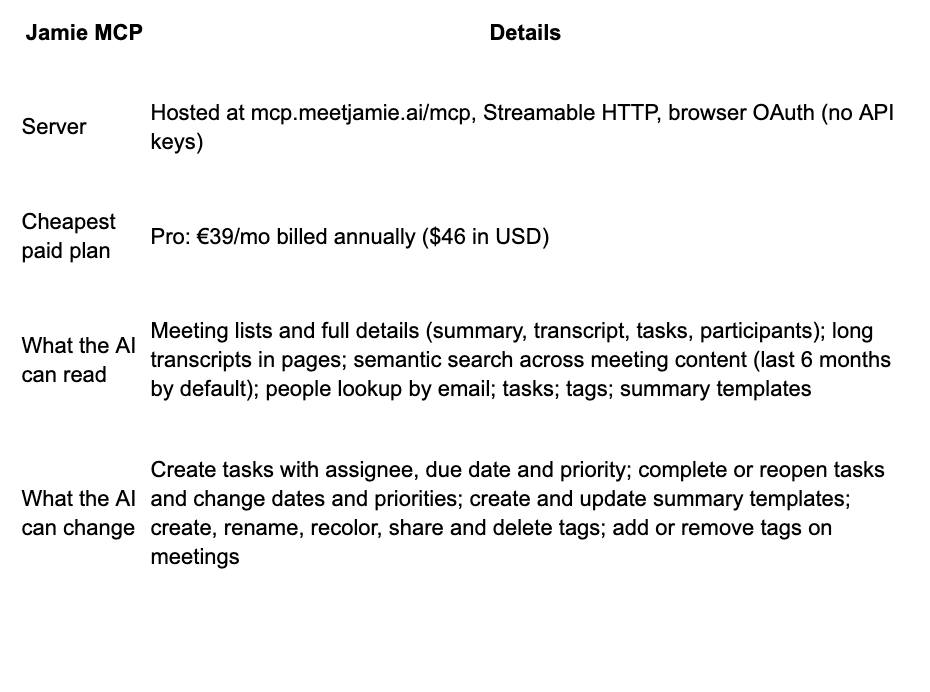
We had a client requiring EU data hosting, which put Jamie AI on my shortlist. I wanted to see how it would handle a typical post‑meeting workflow. Here’s what I got through the MCP integration: it found an agreed deliverable from the transcript, created an action item with a deadline, and tagged the meeting under the relevant client project. The results were satisfying.
Jamie MCP
What stands out to me
- Task and tag management, plus summary template editing
- Semantic search across meeting content
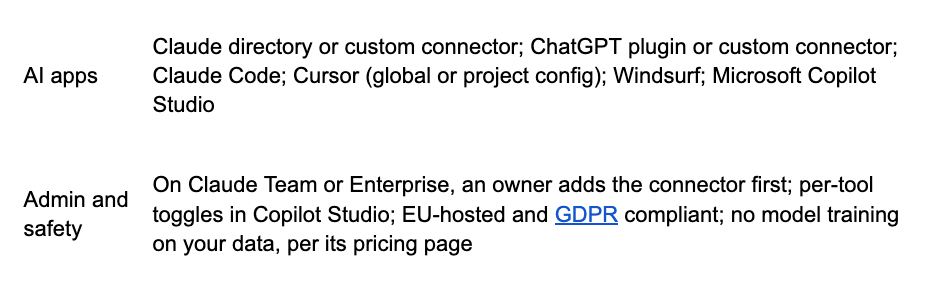
- EU hosting and an explicit statement that customer data is not used for model training - this was important for our security team
- Copilot Studio support with per‑tool toggles for Microsoft‑heavy companies.
Who I’d recommend it to: I’d shortlist Jamie for EU‑based teams and Microsoft Copilot users who need to retrieve meetings and manage tasks and tags.
4. Fellow: best for per‑tool admin controls
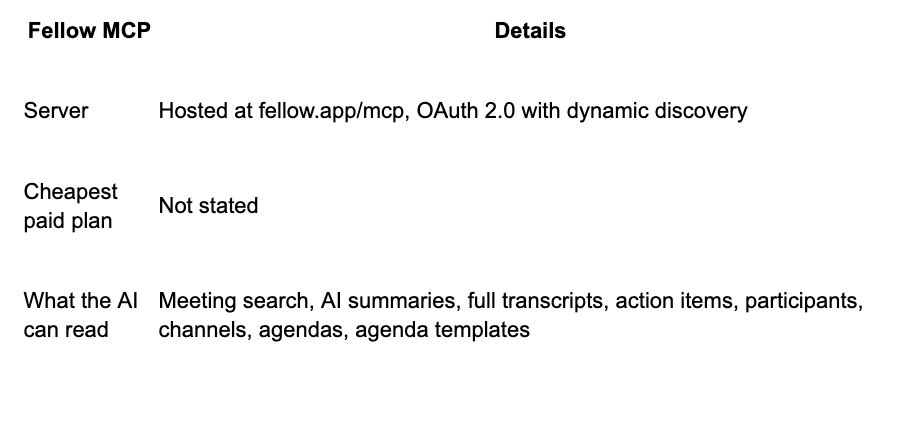
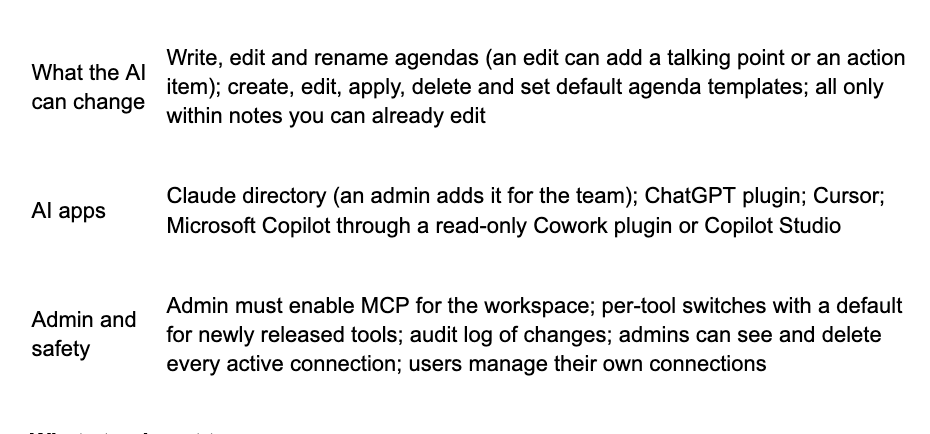
What caught my attention with Fellow was how much control it gives workspace admins. When working under a strict client security policy, I needed access to past meetings without allowing my assistant to modify shared agendas. Fellow lets admins set permissions for individual MCP tools and logs every permission change. To see how the write tools worked, I asked Claude to update an upcoming meeting's agenda, add discussion points and manage agenda templates directly in Fellow once the necessary permissions were enabled. It all worked pretty smoothly.
Fellow MCP
What stands out to me
- Granular admin controls with an audit trail.
- Agenda and template tools for preparing for the upcoming meetings.
- Two Microsoft Copilot routes, including a no‑setup Cowork plugin for licensed users.
Who I’d recommend it to: I’d recommend Fellow to larger teams that prepare meetings in shared agendas and need IT approval for individual MCP tools.
5. tl;dv: best for verifying answers against recordings
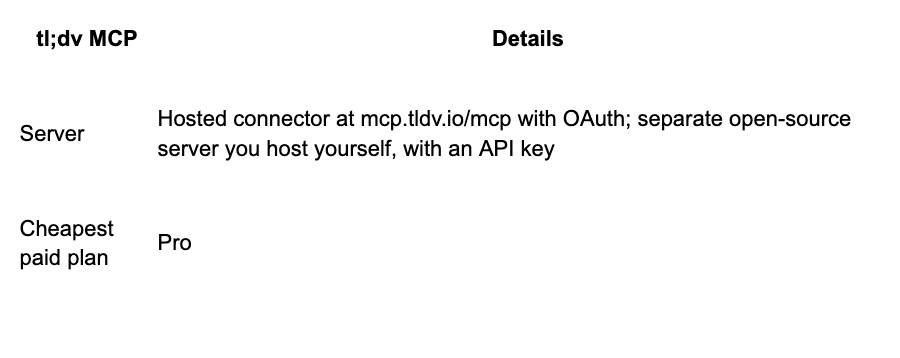
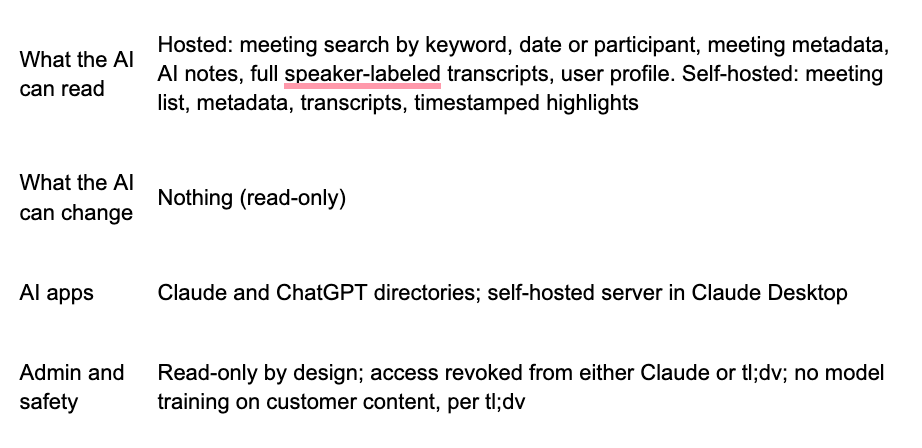
We had a disagreement over a technical decision, so I needed to hear exactly what the client had said rather than rely on a meeting summary. That's where tl;dv's read‑only MCP server made sense to me: every bullet point in the AI‑generated notes linked directly to the relevant moment in the recording. I also asked Claude to compare the initial integration requirements with changes discussed in later calls. It listed the changes chronologically and linked them to the relevant recordings, so I could quickly verify what the client had approved.
tl;dv MCP
What stands out to me
- Recording links let me verify answers against the original conversation.
- Our team could inspect the self‑hosted server's code before connecting their accounts.
Who I’d recommend it to: I’d recommend it to existing tl;dv users who care more about verifying meeting details than editing records.
Read‑only or read‑write: which should you connect?
If all I need is an answer to a question like "what did the client say about pricing in March?", I'd start with read‑only access, such as tl;dv that’s read‑only by design. I'd go with read‑write access if I kept ending up with unassigned action items or transcripts full of unidentified speakers. With the right connector, I could sort those out from a prompt.
For that job, Krisp is the one I'd connect.
Its 27 tools cover the whole clean‑up after a call. The AI can add action items, assign them, set due dates and priority, and close up to 50 at once. It can replace "Speaker 1" with a real name, and the summary updates to match. It can rename meetings, file them into folders and tag them in bulk. It can also import old recordings (up to 1 GB each), so calls from before you started using Krisp land in the same searchable library.
The read side matters just as much. Krisp searches the full text of transcripts, agendas and notes, not only summaries, so the AI can find the exact passage where a client said something.
Then there's where it works. Krisp MCP works for Claude, ChatGPT, Claude Code, Cursor (including a shared project config for your team), VS Code, Codex, Gemini, Grok and Muse.
The others have their strengths. Circleback is the only one here with write tools on a free plan, and it can share meetings, delete items and edit notes. Jamie covers tasks, tags and summary templates for EU‑hosted teams. But if the goal is keeping meeting records clean and getting them into every AI tool you use, Krisp AI Note Taker does more of that job than anything else I looked at.