The gap between the demo and your actual Tuesday afternoon is what this checklist is for. AI presentation tools differ less in whether they can make slides (they all can) and more in what they accept as input, how much control you keep afterwards, and whether the file survives the trip to the format your company actually uses. My own order of priority puts inputs first and pricing last, which is roughly the reverse of how most comparison pages are laid out.
What can you feed it?
Inputs decide how much of your existing material the tool can use.
The simplest tools accept a typed prompt and nothing else. That’s fine for a quick internal deck on a familiar topic. It’s poor for anything grounded in real data or an existing document, because you end up retyping your content into a prompt box.
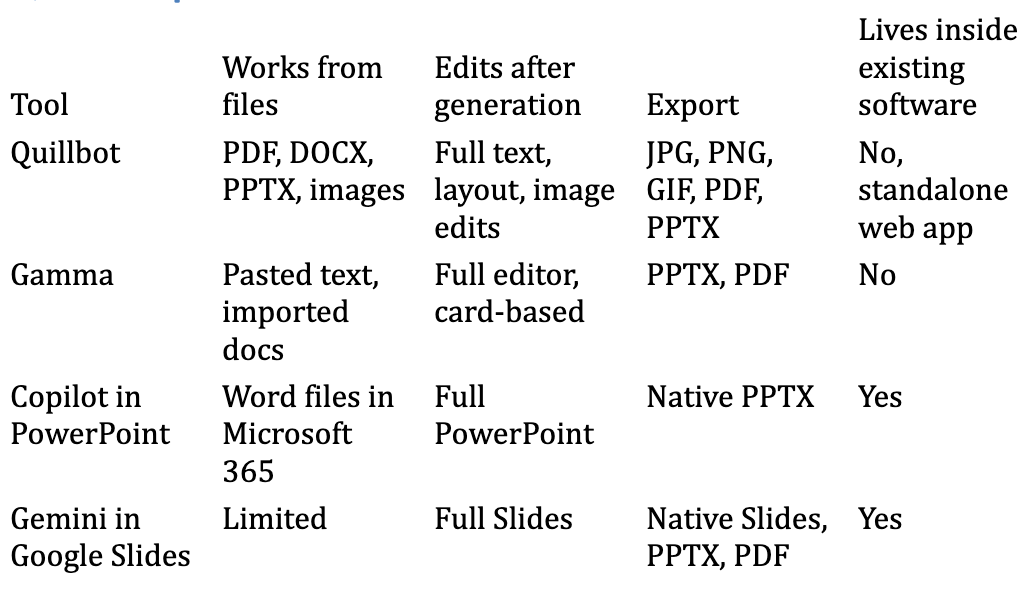
Better tools accept a pasted outline or a block of notes. Better still are those that take files. Quillbot’s ai presentation maker, for example, accepts a prompt, a text outline, or an uploaded PDF, Word document, PowerPoint file or image, and you can tell it the audience, tone and number of slides you want before it generates anything. Uploading a 20‑page project report and asking for an 8‑slide summary for senior leadership is a very different job from writing a prompt from memory, and it’s the job most people have.
Gamma also works well from pasted text and imported documents. Microsoft Copilot in PowerPoint can build a deck from a Word file you have access to, which is useful inside a Microsoft 365 organisation. Google’s Gemini in Slides is more focused on generating individual slides and images within a deck you’re already building.
Checklist questions: - Can it take a file, or only a prompt? - Which file types? (PDF and DOCX at minimum; PPTX if you’re reworking an old deck) - Can you set audience, tone and slide count up front?
The first draft’s structure
Ignore the visuals for a moment and look at the outline. A useful first draft has a clear argument: a title, a problem or context slide, two to five slides of substance, and a slide that asks for something or states a decision. Weak tools produce a series of topic headings (“Overview,” “Key Benefits,” “Challenges,” “Future Outlook”) that look organised and say nothing.
Here’s a quick test. Give each tool you’re evaluating the same input and the same instruction, something like:
Turn the attached report into a 7‑slide deck for our finance director. She needs to approve or reject a ₹40 lakh budget increase for the support team. Lead with the recommendation. Keep each slide to one main point.
Then compare the slide titles alone. Good output reads like a short memo when you list the titles:
- Recommendation: approve the ₹40 lakh increase for Q1
- Ticket volume has grown faster than headcount for three quarters
- Response times now miss the SLA on two of five tiers
- Three options we considered, and their cost
- Why option B gives the best return
- Risks and how we’ll track them
- Decision needed by 15 November
Weak output reads like a table of contents. Run it with every tool on your shortlist and keep the titles in a doc so you can compare them later.
Editing after generation
This is where many tools fall down. Some generate a deck you can only lightly adjust: change text, swap an image, maybe regenerate a slide. Others give you a full editor.
What you want, at minimum: - Edit any text directly - Reorder, add and delete slides - Change the layout of a single slide without regenerating the whole deck - Replace and edit images (crop, at least)
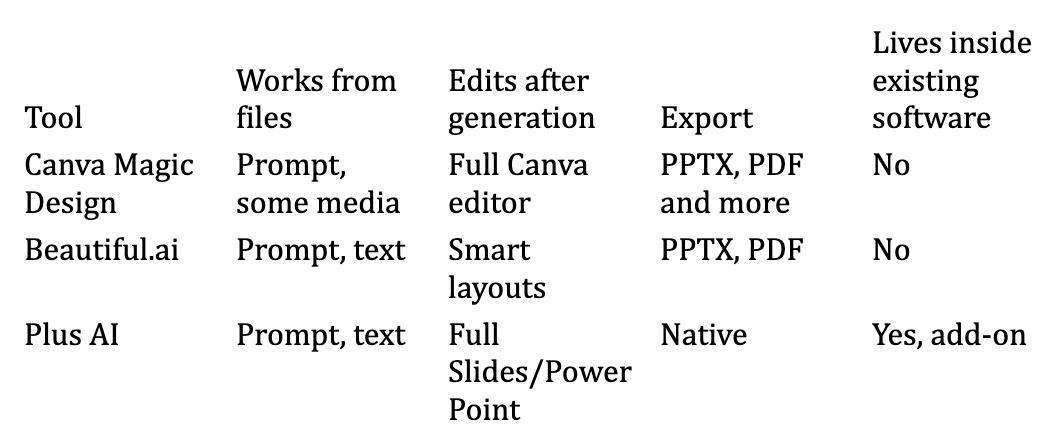
Quillbot’s tool lets you adjust text, reorder slides and change layouts, and its image editing includes cropping, background removal and filters. Beautiful.ai is built around “smart” layouts that rearrange themselves as you add content, which keeps things tidy but can frustrate people who want pixel‑level control. Canva gives you its full design editor once Magic Design has produced a starting point, which is the most flexible option if your team already knows Canva.
Will the export survive your office?
People skip this until it’s too late. If your company presents in PowerPoint, a tool whose decks only live in its own web viewer creates friction every single time: you can’t email a file, you can’t drop slides into another deck, and your colleague who opens it on a locked‑down laptop sees nothing.
Look for PPTX and PDF export at minimum. Check what happens to fonts and layout once a generated deck opens in PowerPoint, since some tools rely on web fonts or custom elements that don’t translate cleanly. Quillbot exports to JPG, PNG, GIF, PDF and PPTX with control over size, quality and page range, which covers the common cases. Gamma exports to PPTX and PDF as well, though decks built around its web‑first card format sometimes need tidying in PowerPoint. Plus AI and SlidesAI sidestep the problem by working inside Google Slides (and, for Plus AI, PowerPoint) directly.
Run the export test before you commit. Generate a deck, export it, open it in the software your boss uses, and click through every slide.
Brand templates
For personal or classroom use, a pleasant default theme is enough. For client work and anything external, you’ll need your logo, colours and fonts, and ideally your company’s existing master template.
Tools vary a lot here. Copilot in PowerPoint and the Google Slides add‑ons work with the templates you already have, which is their biggest advantage. Canva supports brand kits on paid plans. Beautiful.ai and Pitch both have team branding features. Several standalone generators only let you choose from their own themes and tweak colours, which may be fine for internal decks and frustrating for client‑facing ones. When I’ve had to rebuild a generated deck inside a client’s master template, copying text box by text box, re‑applying their fonts, fixing title placeholders that refused to line up and re‑colouring every chart to match their palette, the time saved by the AI disappeared somewhere around slide six, so test with your template early.
Speaker notes and the bit where you talk
A deck is a prop for a person speaking, and the slides are often the easy part. What helps on the day is speaker notes that match the slide, are short enough to glance at, and don’t just repeat the bullet points.
Some tools generate notes automatically; Quillbot’s output includes speaker‑ready text alongside the slides, for instance. Copilot in PowerPoint can draft notes for slides in an existing deck. Others leave the notes pane empty. If you present often, open the notes on a generated deck and read them as if you were standing in front of the room. Good notes sound like something you’d say: “Last quarter we lost two enterprise renewals, both citing slow support. This slide shows why.” Bad notes read like a textbook paragraph you’d never say out loud.
Charts, tables and numbers
This deserves its own line on your checklist, especially for finance, sales or operations decks. Ask three things. Can the tool create a chart from data you paste or upload? Can you edit the chart’s underlying numbers afterwards, or is it a flat image? And when you export to PPTX, does the chart stay an editable PowerPoint chart?
Native tools (Copilot in PowerPoint, Gemini in Slides) win here because their charts are the host application’s own. Standalone generators vary from good to “here’s a picture of a bar chart.” For a monthly review deck where the numbers change every four weeks, an editable chart saves you rebuilding the slide each time, and that alone can be the deciding factor between two otherwise similar tools.
Working with other people
A deck is rarely a solo job. Someone writes, someone reviews numbers, someone senior asks for “just one more slide” at 9 p.m.
Check whether you can share an editable link, whether multiple people can edit at once, and whether comments are supported. Quillbot lets you invite teammates by email or share a link and edit together at the same time. Pitch was designed around team collaboration from the start, with comments and assigned slides. Google Slides with Gemini inherits everything Google Slides already does, which is a lot.
Free tiers and pricing
Most of these tools have a free option. What’s included varies: number of decks, number of AI generations, export formats, watermarks and branding.
Quillbot’s presentation maker is free to use, with a Premium plan for unlimited presentations and faster generation. Others limit free users to a handful of AI credits or watermark free exports. Since pricing on these tools changes often, check the current terms on each product’s site rather than relying on comparison tables you find online, including the one below.
Quick comparison
Common mistakes when choosing
Picking on demo quality alone. Every tool’s homepage demo is its best case. Test with your own messy material.
Ignoring the “last mile.” Brand fonts, PowerPoint compatibility and editing a single chart often decide whether you’ll keep using a tool. A gorgeous first draft that takes an hour to fix in PowerPoint saves you nothing.
Expecting it to understand your numbers. AI tools summarise and arrange content well. They’re less reliable at interpreting a spreadsheet correctly. If your deck depends on figures, check every number against the source, and build key charts yourself when accuracy matters.
Buying for the whole team before one person has used it for a month. Let someone run real decks through the tool for a few weeks first. Novelty wears off quickly, and what’s left is whether it fits the way your team works.
Forgetting accessibility and language. If you present to mixed audiences, check whether the tool lets you set contrast‑friendly themes, add alt text to images, and generate content in languages other than English. A sales team presenting to clients in Hindi, Arabic or Spanish will quickly find out which tools handle non‑English text well and which ones mangle line breaks or fall back to an odd font.
Choosing a standalone tool when you live in one ecosystem. If your whole organisation runs on Microsoft 365, with SharePoint templates and IT policies about where files can be stored, a native assistant may be the practical choice even if a standalone generator writes better first drafts. The reverse is also true for freelancers and small teams, who often get more from a flexible standalone tool than from an add‑on tied to software they barely use.
A one‑week trial plan
Pick two or three tools from the shortlist. On Monday, run the same real input (a recent report or set of meeting notes) through each one with the same instruction. On Tuesday, compare slide titles only, using the memo test above. Wednesday, spend 30 minutes editing the best draft from each tool into something you’d present. Thursday, export each to PPTX and PDF and open them where your audience will. Friday, share one with a colleague and edit together.
By the end of the week you’ll know which ai presentation maker fits your inputs, your editing habits and your export needs, and that’s a far better basis for a decision than any feature list.
FAQ
Can an AI presentation maker replace a designer? For internal and everyday decks, often yes. For a major product launch or investor pitch, use it to draft and a designer to finish.
Is it safe to upload confidential documents? Check each vendor’s data and privacy terms, and follow your company’s policy on uploading internal files to third‑party tools.
How many slides should I ask for? Fewer than you think. Ask for seven, then add if needed; trimming a 20‑slide AI deck takes longer.
Before you sign up for anything
Write down the last three decks you actually made at work, what you started from (prompt, notes, report, old deck) and where you presented them. That short list is your real requirements document. Any tool that can’t handle at least two of those three situations isn’t the right one, however good its demo looks.